Connecting GitHub to RStudio
PSTAT197A Fall 2026
UCSB
Objective for today
Connect your existing GitHub account to Git/RStudio so that you can:
clone a GitHub repository as an RStudio project;
pull changes from GitHub;
stage and commit changes in RStudio;
push your commits back to GitHub.
By the end, you should be able to add your own about file to the class repository.
The class repository
For this walkthrough, we will use:
github.com/pstat-197a-fall2026/github-basics-template
Your goal is to add:
to this repository.
What does “connect GitHub to RStudio” mean?
There are three separate pieces:
Git tracks changes on your own computer.
GitHub hosts the remote copy of the repository online.
RStudio gives you buttons for common Git actions such as commit, pull, and push.
RStudio does not have a separate GitHub account that you log into.
To send changes to GitHub, Git needs a way to authenticate you.
Before you start
You should already have:
a GitHub account;
Git installed on your computer;
RStudio installed;
access to the
pstat-197a-fall2026GitHub organization;the URL of the repository you want to use.
For this activity:
First: make sure RStudio can see Git
In RStudio:
Tools > Global Options > Git/SVN
You should see a path next to Git executable.
If you see one, Git is installed and RStudio can find it.
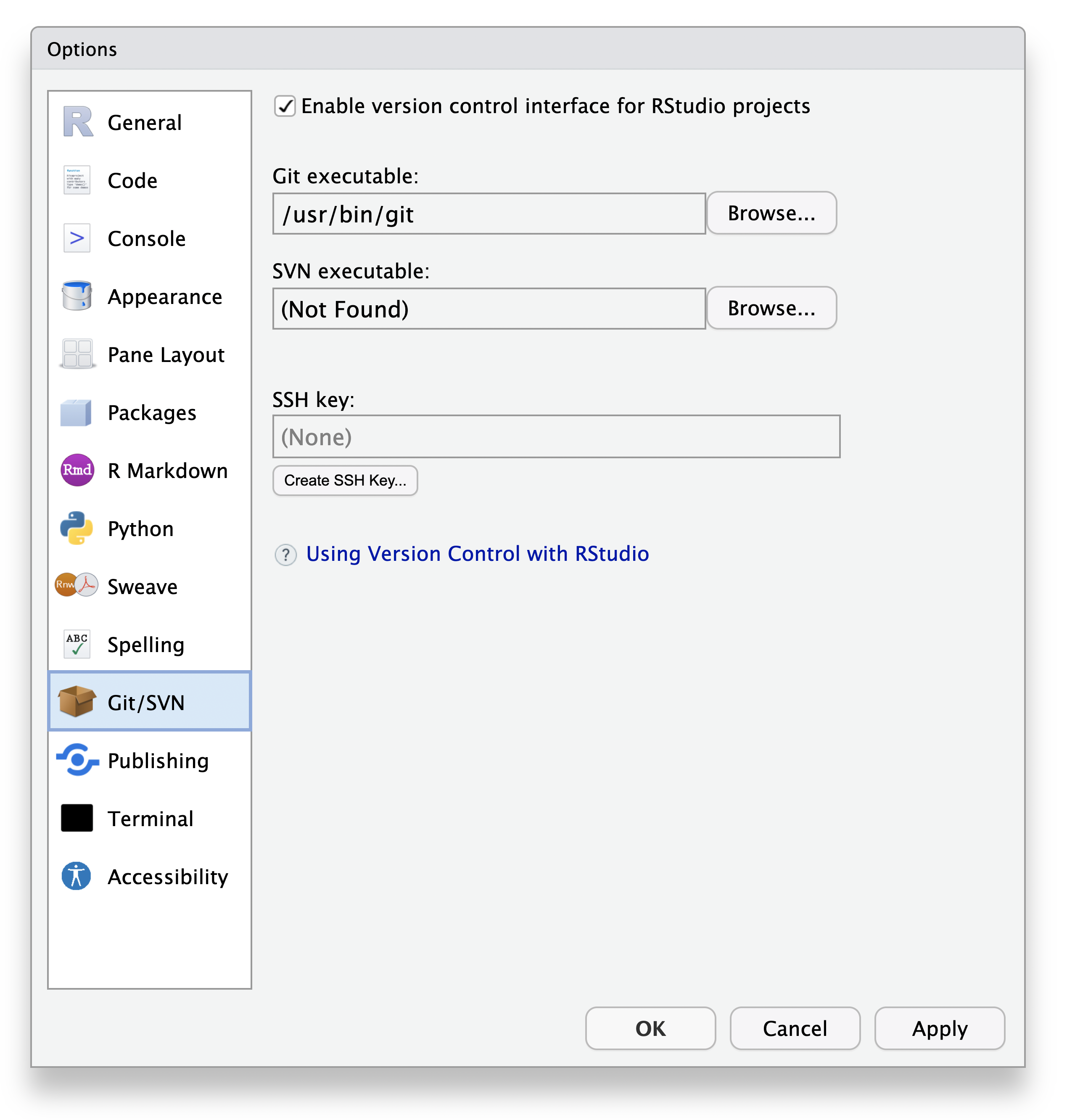
RStudio Git/SVN settings. Source: Posit RStudio User Guide.
Create an RStudio project from the GitHub repository
In RStudio:
- File > New Project
- Choose Version Control
- Choose Git
- Paste the repository URL:
- Choose where you want the project saved on your computer.
- Click Create Project.
RStudio will clone the repository and open the local copy as a project.
If you are already staring at this popup…
Many of you are currently at a popup asking for your GitHub username.
That is okay. You are in the right place.
When Git asks for a username:
enter your GitHub username;
use the username for the account you submitted for this course;
do not enter your UCSB NetID unless that also happens to be your GitHub username.
The next prompt may ask for a password or personal access token.
What is a PAT?
PAT = Personal Access Token
A PAT is a special string generated by GitHub that can authenticate Git operations on your behalf.
Think of it as a replaceable, limited-purpose password for Git.
A PAT:
is generated from your GitHub account;
can be limited to particular kinds of access;
can expire;
can be revoked without changing your GitHub password.
Why am I being asked for a PAT instead of my password?
GitHub does not accept your normal account password for Git operations over HTTPS.
When Git or RStudio asks for a password while connecting to GitHub:
paste your PAT instead of your GitHub password.
Your normal GitHub password will not work for this.
Important
Never paste your PAT into an R script, Quarto document, GitHub repository, Canvas submission, or class chat.
Create a PAT: navigate to the settings
On github.com:
- Click your profile picture in the upper-right corner.
- Click Settings.
- Scroll to the bottom of the left sidebar.
- Click Developer settings.
- Click Personal access tokens.
- Click Tokens (classic).
- Choose Generate new token > Generate new token (classic).
GitHub may ask you to confirm your password or two-factor authentication.
Create a PAT: name and expiration
For Note, enter something descriptive, such as:
For Expiration:
choose an expiration that lasts at least through the course;
90 days will be more than enough for this quarter;
do not choose an unnecessarily long expiration.
If the token expires later, you can simply make a new one.
Create a PAT: choose the scope
Under Select scopes, select:
You do not need full access to private repositories for this course.
public_repo allows the token to work with public repositories that your GitHub account has permission to modify.
The PSTAT 197A course repositories are public.
Important
Do not select permissions simply because they sound useful. For this course, public_repo is sufficient.
Generate and COPY the PAT
Scroll to the bottom and click Generate token.
GitHub will display the token.
Copy it immediately.
GitHub will not show you the complete token again after you leave the page.

Example of the GitHub token display after creation. Source: GitHub Docs.
Treat the PAT like a password
Your token will look something like:
Do not:
show it to another student;
email it to anyone;
put it in an R file;
commit it to GitHub;
include it in a screenshot.
If you accidentally expose it, revoke it on GitHub and create a new one.
Go back to RStudio
Return to the authentication popup.
When asked for:
Username
When asked for:
Password / Personal Access Token
The PAT goes in the password field.
Do not enter your normal GitHub password.
Will I have to enter the PAT every time?
Usually, no.
Git can store the credential using your computer’s credential system so that RStudio can reuse it.
If your computer keeps asking for the PAT every time you pull or push, run this in the R Console:
When prompted, paste your PAT.
This stores the credential through Git’s credential system rather than putting the PAT in your R code.
Git identity is a different thing
Authentication answers:
Are you allowed to push to this GitHub repository?
Your Git identity answers:
Whose name and email should appear on this commit?
These are separate settings.
In the RStudio Terminal, run:
Use the email address associated with your GitHub account.
Check your Git identity
In the RStudio Terminal:
You should see your own name and email.
You generally only need to configure these once on your computer.
Check that you are connected to the correct repository
In the RStudio Terminal, run:
You should see:
If the URL points somewhere else, stop before pushing.
The Git pane in RStudio
Once you are inside an RStudio project connected to a Git repository, you should see a Git tab.
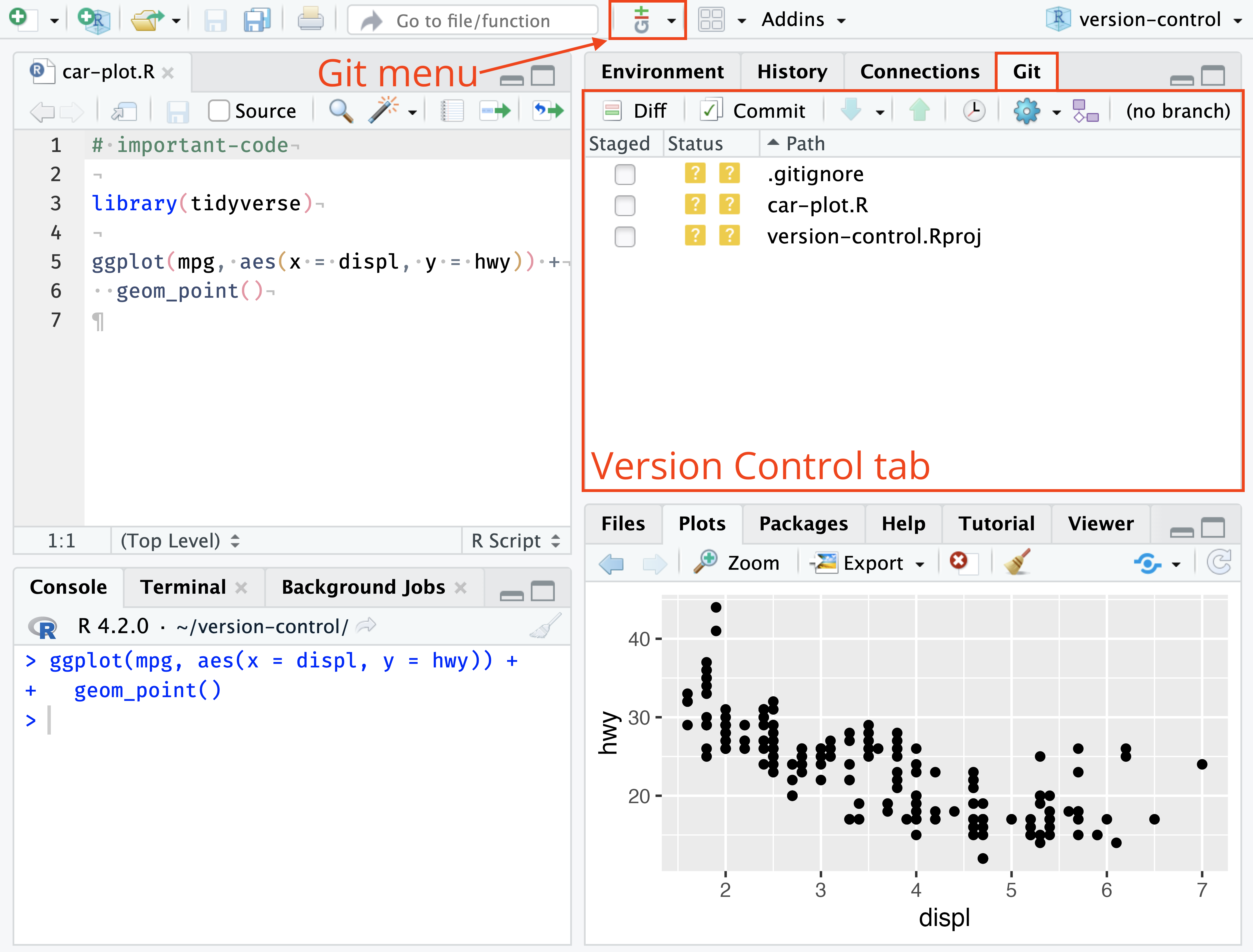
The Git interface in RStudio. Source: Posit RStudio User Guide.
This is where you can stage files, commit, pull, push, and inspect changes.
Create your about file
In RStudio:
File > New File > Markdown File
Add a heading and a fun fact about yourself.
For example:
Save the file inside the class-activity folder as:
Pull before you push
Many people are working on this repository at the same time.
Before sending your changes to GitHub, pull first.
In the Git pane, click the Pull arrow.
Or in the Terminal:
This updates your local copy with changes that other students have already pushed.
Stage your file
In the Git tab, find:
Check the box next to the file.
This stages the file: you are telling Git that you want to include that change in your next commit.
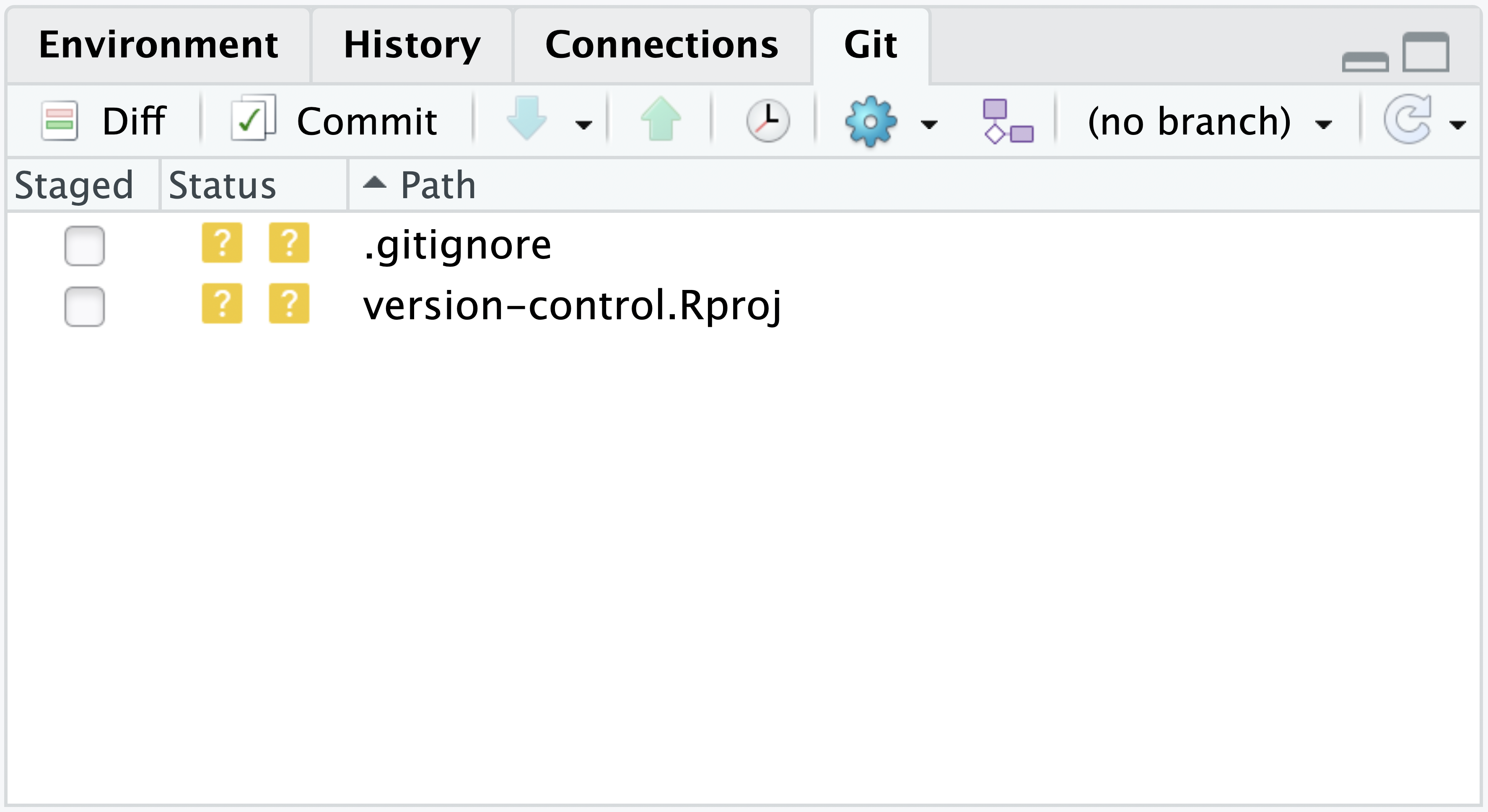
Example of the Git tab in RStudio. Source: Posit RStudio User Guide.
Commit your file
Click Commit.
In the Review Changes window:
- confirm that your
aboutfile is staged; - enter a short commit message, such as:
- click Commit.
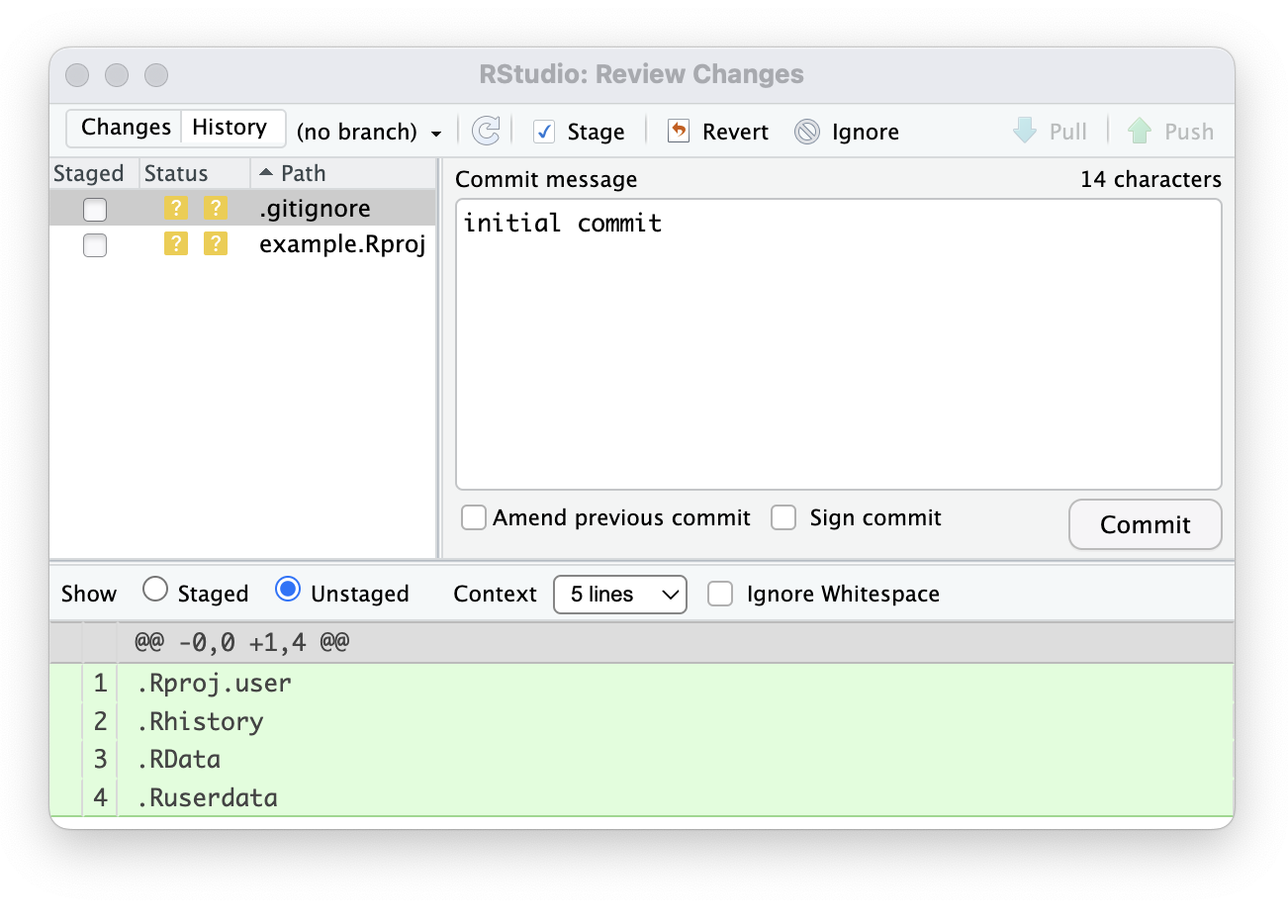
RStudio’s Review Changes window. Source: Posit RStudio User Guide.
Commit does NOT mean upload
A commit records the change in the Git repository on your computer.
It does not automatically send anything to GitHub.
To send the commit to the remote repository, you still need to:
So the basic sequence is:
Push your commit
Immediately before pushing, it is a good idea to Pull again because many students may be updating the repository.
Then click Push in RStudio.
If Git asks for authentication:
username = your GitHub username;
password = your PAT.
If the push succeeds, your commit is now on GitHub.
If your push is rejected because the remote changed
This is likely to happen if many people may be pushing at once.
If you see a message that your branch is behind the remote:
- Pull again.
- Let Git incorporate the new commits.
- Push again.
Because everyone is creating a different USERNAME-about.md file, these updates should not conflict with one another.
Verify on GitHub
Open:
github.com/pstat-197a-fall2026/github-basics-template
Navigate to:
You should see:
If you can see the file on github.com, your local Git/RStudio setup is successfully communicating with GitHub.
Troubleshooting: authentication failed
If GitHub rejects your authentication, check:
Did you enter your GitHub username?
Did you paste the PAT, not your GitHub password?
Is the PAT still active and unexpired?
Did you give the classic PAT the
public_reposcope?Have you accepted the invitation to the
pstat-197a-fall2026organization?
A public repository can be viewed and cloned by anyone, but pushing directly requires write permission.
Troubleshooting: no Git tab in RStudio
First make sure you opened the RStudio project created from the repository, not an unrelated RStudio session.
Then check:
Tools > Global Options > Git/SVN
Make sure:
Enable version control interface for RStudio projects is checked;
RStudio shows a Git executable.
You can also run in the Terminal:
Troubleshooting: wrong repository
Run:
For this activity, origin should point to:
Do not push until you know which remote repository your project is connected to.
If you are not yet a member of the organization
You can view and clone the public repository, but you cannot push directly to it without write access.
If you have not yet been added to the course organization:
- complete the Git/RStudio/PAT setup;
- do not worry if the final direct push is rejected;
- follow the alternate fork/pull-request instructions provided by the instructor.
Once your organization invitation is accepted, the normal push workflow will work.
The workflow to remember
For routine work:
Authentication with your PAT is what allows the final communication with GitHub.
Checklist
Before you are finished, confirm that:
- GitHub recognizes your account when Git/RStudio asks for credentials.
- You created a PAT and used it instead of your GitHub password.
- Your Git name and email are configured.
git remote -vpoints to the correct course repository.- You can see the Git tab in RStudio.
- You created and committed
YOURGITHUBUSERNAME-about.md. - You pushed the file and can see it on github.com.
Official documentation

PSTAT197A Fall 2026